I wasn't too impressed with USB audio in Windows XP and Vista. I had to manually switch between audio outputs, and I saw a few blue screens when unplugging USB audio device.
USB audio finally works right in Windows 7. When a USB audio device is plugged in, audio output switches to that device. When the device is unplugged, audio output switches back. I can even use my USB wireless headphones to listen to line in on the motherboard. Most importantly of all, USB audio doesn't crash Windows 7.
Tuesday, February 23, 2010


Tuesday, February 16, 2010
Concatenating DVD titles using Avidemux and Ifoedit
To join VOB files in a single set (such as VTS_01_1.VOB and VTS_01_2.VOB), you can simply concatenate them using a utility like cat. They are actually already concatenated on the DVD; they only appear separate in the filesystem because the standard limits file sizes to 1GB for compatibility purposes.
For joining multiple VOB sets, Avidemux seems like a pretty good choice. An entire VOB set can be opened by opening just the first file. (Avidemux asks if you want to index the file and append the other parts of the set.) Then, other VOB sets can be appended using the Append option in the File menu. Finally the basic video editing features in Avidemux can be used to remove duplicate or unwanted content.
The resulting video can be put onto a new DVD via Ifoedit. First, the audio and video need to be saved separately from Avidemux. Then, the DVD authoring functionality of Ifoedit can transform this into files go in a VIDEO_TS folder. Finally, the result can be burned using any DVD burning software which can burn video DVDs.
What doesn't work?
A lot of software in this area is annoying and/or broken.
For joining multiple VOB sets, Avidemux seems like a pretty good choice. An entire VOB set can be opened by opening just the first file. (Avidemux asks if you want to index the file and append the other parts of the set.) Then, other VOB sets can be appended using the Append option in the File menu. Finally the basic video editing features in Avidemux can be used to remove duplicate or unwanted content.
The resulting video can be put onto a new DVD via Ifoedit. First, the audio and video need to be saved separately from Avidemux. Then, the DVD authoring functionality of Ifoedit can transform this into files go in a VIDEO_TS folder. Finally, the result can be burned using any DVD burning software which can burn video DVDs.
What doesn't work?
A lot of software in this area is annoying and/or broken.
- DVD Shrink can easily put two titles on one DVD. However, it can't create menus or join them into one title. That makes navigation annoying.
- If the VOBs are just concatenated, only the first title is playable.
- VobEdit's "Join Clips" feature is useless here. When joining files, it gives each file its own VOB ID. When Ifoedit creates the IFO files, seeking only works within the first VOB ID.
- Avidemux failed to index the VOB set that Ifoedit created. The VOB set is progressive, but the Avidemux index says it's interlaced. It's easy to change "Image : I" to "Image : P" in the index file; I just wonder whether there's something wrong with the VOB set.
- MPEG Streamclip requires the MPEG-2 QuickTime component for preview.
- VirtualDub and related programs can't save in MPEG-2 format.
- Windows DVD would re-encode all the video even though it's already in the right format.
Tuesday, February 09, 2010
Deleting a file called "nul" in Windows 7
I tried to use "nul" instead of "/dev/null" in Cygwin. That created a file called "nul". When I tried to delete the file in Explorer, I got an interesting "Invalid MS-DOS function" error:

The file can be deleted (and otherwise manipulated) from Cygwin. It can also be deleted from the Windows Command Prompt by prefixing its full path with "\\?\".

The file can be deleted (and otherwise manipulated) from Cygwin. It can also be deleted from the Windows Command Prompt by prefixing its full path with "\\?\".
Tuesday, January 26, 2010
Eclipse CDT incompatibility with Cygwin 1.7
Eclipse failed to detect the Cygwin GCC toolchain. Attempts to manually set the toolchain in project properties led to an error being displayed below the choice: "The configuration support is not installed on the system". This is because Eclipse gets Cygwin paths from the registry, and Cygwin 1.7 stopped storing them there. To fix the problem, I added the paths to the registry using a .reg file:
Customize the "native" values to point to your cygwin directory.
REGEDIT4

[HKEY_LOCAL_MACHINE\SOFTWARE\Cygnus Solutions\Cygwin\mounts v2]
"cygdrive prefix"="/cygdrive"
"cygdrive flags"=dword:00000022

[HKEY_LOCAL_MACHINE\SOFTWARE\Cygnus Solutions\Cygwin\mounts v2\/]
"native"="C:\\cygwin"
"flags"=dword:0000000a

[HKEY_LOCAL_MACHINE\SOFTWARE\Cygnus Solutions\Cygwin\mounts v2\/usr/bin]
"native"="C:\\cygwin\\bin"
"flags"=dword:0000000a

[HKEY_LOCAL_MACHINE\SOFTWARE\Cygnus Solutions\Cygwin\mounts v2\/usr/lib]
"native"="C:\\cygwin\\lib"
"flags"=dword:0000000a
Customize the "native" values to point to your cygwin directory.
Thursday, January 21, 2010
Compiling HPLIP in Windows using Cygwin
Windows drivers for the HP Color LaserJet 2840 All-in-One Printer are a bloated piece of garbage. Scanning over the network doesn't work, and downloadable drivers only offer printing support for 64-bit versions of Windows. The potentially decent Windows driver alternatives may be to only use the all-in-one for printing or connect the printer via USB to a computer running Windows 7.
Via HPLIP (HP Linux Imaging and Printing), Hewlett-Packard provides Linux drivers for many HP printers and all-in-one devices. The 2840 is fully supported. These drivers consist of applications and dynamically linked libraries which can work in Cygwin in Windows The process of compiling them is not straightforward, but it's certainly not impossible. Here I will concisely describe how to compile a lite version of HPLIP with scanning and printing support.
First, note the dependencies that are listed in the manual installation page. Some of these, (such as gcc, libjpeg and libcrypto) are standard Cygwin packages. They can simply be installed via the setup program. That is the easy part. The next step is compiling the dependencies. The following instructions list the important points (such as problems and workarounds) and omit the obvious things (such as running make and "make install"). They place everything under /opt/hplip, to keep things tidy and somewhat portable.
Net-SNMP 5.5
HPLIP seems to only require a stripped-down version of Net-SNMP; basically only the library is needed. Compiling only the needed parts simplifies things and avoids some issues:
The entire agent subdirectory is not needed; remove it from SUBDIRS in the generated top level Makefile.
Windows DLLs can't have undefined symbols, and because of this libtool normally requires a -no-undefined switch to build shared libraries in Windows. In in the Cygwin section of func_mode_link () in libtool uncomment the allow_undefined=no line and comment out the yes line. Note comments explaining the issue.
CUPS (1.4.2)
Even the network scanner driver depends on CUPS. Fortunately, CUPS is easy to compile. The only problem is that the rules for generating shared libraries are for Unix only. One could add Cygwin-specific rules or set up the project for Automake and Libtool, but it's far simpler to just disable shared libraries:
After CUPS is installed, create an administration password with "lppasswd -g admin -a root" and change AuthType to BasicDigest in /opt/hplip/etc/cups/cupsd.conf. The administration interface is at http://localhost:631/ and https://localhost:631/. Note that you don't need to let cupsd through your Windows firewall to access the administration interface on localhost.
SANE (sane-backends-1.0.20)
This is easiest to build. I simply configured it using:
When attempting to run "saned -d" before, I got "invalid fd in set, attempting to re-bind" errors. I think disabling IPv6 fixed that. In any case, I don't need IPv6.
While building tools/sane-desc, I got missing include file errors the first time. Surprisingly, retrying fixed that error.
HPLIP (3.9.12)
If you get a .run file, you can get a .tar.gz by starting with the 0x1F byte after the shell script. The contents of the resulting tar.gz are not all in one directory, like with most software. That means you need to create a new directory, change to it and extract there. You can also download a .tar.gz from HP. At this point you definitely need the dependencies, so add /opt/hplip/bin to the path and use CPPFLAGS and LDFLAGS:
After this, the generated libtool again needs to be fixed. Under the "libtool link mode" comment, uncomment "allow_undefined=no" and comment out "allow_undefined=yes". In prnt/hpcups/ErnieFilter.cpp, ensure that math.h is included; remove the conditional around the include.
After "make install" copy data/models/models.dat to /opt/hplip/share/hplip/data/models/models.dat, or maybe move the whole data directory. Also, move /opt/hplip/lib/bin/cygsane-hpaio-1.dll to /opt/hplip/lib/sane/. Then, add a hpaio line to /opt/hplip/etc/sane.d/dll.conf. You can comment out all the other lines in that dll.conf and remove /etc/sane.d and the dll.conf file found there. The only file that remains outside of /opt/hplip is /etc/hp/hplip.conf. That path is hard-coded into several hplip files.
Finally, it's time to configure CUPS. You can create a URI for your printer by probing it with hp-mkuri. For example "hp-mkuri -i 1.2.3.4" would give you something like hp:/net/HP_Color_LaserJet_2840?ip=1.2.3.4 if successful. When adding a printer, choose HPLIP and enter that URI. You can find your PPD file in /opt/hplip/share/ppd/HP/ and with the 2840, CUPS can retrieve settings from the printer (it just takes a while). At that point, you can print a test page.
At this point, scanning should work. Scanning from the command line via scanimage does not need saned running because it uses the backend directly. The output goes to standard output, so be sure to redirect it. Scanning from a GUI is possible via xsane-win32 and there even TWAIN frontends for SANE. Note that although saned is designed to run under inetd, it can be run temporarily via "/opt/hplib/sbin/saned -d".
The HPLIP GUI is not available and faxing isn't supported. The LyX instructions for compiling Qt in Cygwin seem promising, but I may not work on that anytime soon because I don't need the fax features and I expect the GUI would be bloated.
Via HPLIP (HP Linux Imaging and Printing), Hewlett-Packard provides Linux drivers for many HP printers and all-in-one devices. The 2840 is fully supported. These drivers consist of applications and dynamically linked libraries which can work in Cygwin in Windows The process of compiling them is not straightforward, but it's certainly not impossible. Here I will concisely describe how to compile a lite version of HPLIP with scanning and printing support.
First, note the dependencies that are listed in the manual installation page. Some of these, (such as gcc, libjpeg and libcrypto) are standard Cygwin packages. They can simply be installed via the setup program. That is the easy part. The next step is compiling the dependencies. The following instructions list the important points (such as problems and workarounds) and omit the obvious things (such as running make and "make install"). They place everything under /opt/hplip, to keep things tidy and somewhat portable.
Net-SNMP 5.5
HPLIP seems to only require a stripped-down version of Net-SNMP; basically only the library is needed. Compiling only the needed parts simplifies things and avoids some issues:
./configure --prefix=/opt/hplip --disable-agent --disable-applications --with-perl-modules=no --disable-embedded-perlThe entire agent subdirectory is not needed; remove it from SUBDIRS in the generated top level Makefile.
Windows DLLs can't have undefined symbols, and because of this libtool normally requires a -no-undefined switch to build shared libraries in Windows. In in the Cygwin section of func_mode_link () in libtool uncomment the allow_undefined=no line and comment out the yes line. Note comments explaining the issue.
CUPS (1.4.2)
Even the network scanner driver depends on CUPS. Fortunately, CUPS is easy to compile. The only problem is that the rules for generating shared libraries are for Unix only. One could add Cygwin-specific rules or set up the project for Automake and Libtool, but it's far simpler to just disable shared libraries:
LIBS=-lz ./configure --prefix=/opt/hplip --disable-shared --with-cups-group=NoneAfter CUPS is installed, create an administration password with "lppasswd -g admin -a root" and change AuthType to BasicDigest in /opt/hplip/etc/cups/cupsd.conf. The administration interface is at http://localhost:631/ and https://localhost:631/. Note that you don't need to let cupsd through your Windows firewall to access the administration interface on localhost.
SANE (sane-backends-1.0.20)
This is easiest to build. I simply configured it using:
./configure --prefix=/opt/hplip --with-group=None --disable-ipv6When attempting to run "saned -d" before, I got "invalid fd in set, attempting to re-bind" errors. I think disabling IPv6 fixed that. In any case, I don't need IPv6.
While building tools/sane-desc, I got missing include file errors the first time. Surprisingly, retrying fixed that error.
HPLIP (3.9.12)
If you get a .run file, you can get a .tar.gz by starting with the 0x1F byte after the shell script. The contents of the resulting tar.gz are not all in one directory, like with most software. That means you need to create a new directory, change to it and extract there. You can also download a .tar.gz from HP. At this point you definitely need the dependencies, so add /opt/hplip/bin to the path and use CPPFLAGS and LDFLAGS:
CPPFLAGS=-I/opt/hplip/include LDFLAGS=-L/opt/hplip/lib LIBS="-lssl -lz" ./configure --prefix=/opt/hplip --enable-hpijs-only-build=no --enable-hpijs-install=no --enable-gui-build=no --enable-dbus-build=no --enable-cups-drv-install=yes --with-cupsbackenddir=/opt/hplip/lib/cups/backend --with-cupsfilterdir=/opt/hplip/lib/cups/filter --enable-qt4=no --enable-lite-buildAfter this, the generated libtool again needs to be fixed. Under the "libtool link mode" comment, uncomment "allow_undefined=no" and comment out "allow_undefined=yes". In prnt/hpcups/ErnieFilter.cpp, ensure that math.h is included; remove the conditional around the include.
After "make install" copy data/models/models.dat to /opt/hplip/share/hplip/data/models/models.dat, or maybe move the whole data directory. Also, move /opt/hplip/lib/bin/cygsane-hpaio-1.dll to /opt/hplip/lib/sane/. Then, add a hpaio line to /opt/hplip/etc/sane.d/dll.conf. You can comment out all the other lines in that dll.conf and remove /etc/sane.d and the dll.conf file found there. The only file that remains outside of /opt/hplip is /etc/hp/hplip.conf. That path is hard-coded into several hplip files.
Finally, it's time to configure CUPS. You can create a URI for your printer by probing it with hp-mkuri. For example "hp-mkuri -i 1.2.3.4" would give you something like hp:/net/HP_Color_LaserJet_2840?ip=1.2.3.4 if successful. When adding a printer, choose HPLIP and enter that URI. You can find your PPD file in /opt/hplip/share/ppd/HP/ and with the 2840, CUPS can retrieve settings from the printer (it just takes a while). At that point, you can print a test page.
At this point, scanning should work. Scanning from the command line via scanimage does not need saned running because it uses the backend directly. The output goes to standard output, so be sure to redirect it. Scanning from a GUI is possible via xsane-win32 and there even TWAIN frontends for SANE. Note that although saned is designed to run under inetd, it can be run temporarily via "/opt/hplib/sbin/saned -d".
The HPLIP GUI is not available and faxing isn't supported. The LyX instructions for compiling Qt in Cygwin seem promising, but I may not work on that anytime soon because I don't need the fax features and I expect the GUI would be bloated.
Thursday, December 31, 2009
PH61153 video selector switch disassembly
Disassembly Instructions
Photos
The top of the main board shows the through-hole components and the back of the RCA jack circuit board. The socketed chip is a EM78P156EL microcontroller.

The bottom shows the surface mount components. The chips are 4000-series CMOS. The three along the bottom are 4052L. Each contains two four-channel analog multiplexers. The chip above them is an HEF4053B. It contains three two-channel analog multiplexers.

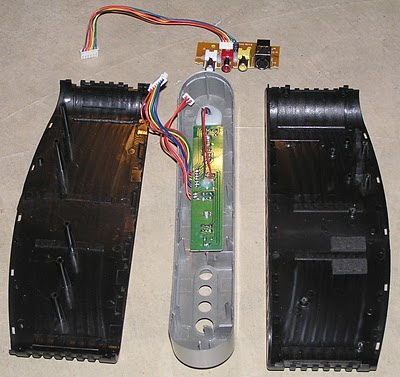
Here is the rest of the device. Note how except for the RF modulator, there's no shielding. Even the video signal from the front panel connects via ordinary wires. Nevertheless, the switch does not seem to degrade video quality.
The Story
I just got a PH61153 video selector switch. It has four inputs, supports composite and S-video and stereo audio and has an RF modulator. The best part is that it can automatically switch to the highest priority input which has a video signal, and so I can basically hide it and forget about it.
I got it from XSCargo. They were the only local store that had it in stock, and they certainly had what seemed like a good price ($19.95). Unfortunately, the low price only reflected the low quality. First I noticed that that Philips wasn't mentioned anywhere. Then I noticed that most of the them were badly scratched and scuffed, and one had something rattling around inside. Finally, when I bought one and brought it home, I found that one of the inputs didn't work. The switch never auto-switched to the first input, and if I manually switched to it I got no composite video or audio.
I didn't like the idea of going back to XSCargo. It was a long drive, and the replacement could again have some issue. At this point, I didn't want to open up the switch and so I first measured resistance at the inputs. Unlike the other inputs, the broken input had an open circuit on all three RCA jacks. Based on this, I concluded that the problem was probably a bad connection, and not a burned out part. So, I decided to open up the device.
The problem turned out to be a crack on the back circuit board. The RCA connectors on the back are all mounted the back circuit board, and the S-video connectors are mounted on the main board. The back circuit board has large square holes for the S-video connectors. As a result, it is only connected to the main board via four fingers. One of these fingers had cracked. That's not surprising when you consider how some RCA connectors can be very tight and hard to fully seat or unplug. It was an easy fix.
- Remove the silver front. It is only held by clips. Push inwards on the black part near the silver while pulling the silver part away. Start where it's easiest and go from there. You can put folded up paper in the gap to keep it open. The front will remain attached by cables.
- Separate the black parts of the case. Once the front is off, these clips are obvious.
- Unplug the cables going to the front from the main circuit board.
- Unscrew the small circuit board for the front input, and unplug its cable from the main board.
- Unscrew the screws holding the main board and the screws holding RCA connectors to the back. Remove the main board
Photos
The top of the main board shows the through-hole components and the back of the RCA jack circuit board. The socketed chip is a EM78P156EL microcontroller.

The bottom shows the surface mount components. The chips are 4000-series CMOS. The three along the bottom are 4052L. Each contains two four-channel analog multiplexers. The chip above them is an HEF4053B. It contains three two-channel analog multiplexers.

Here is the rest of the device. Note how except for the RF modulator, there's no shielding. Even the video signal from the front panel connects via ordinary wires. Nevertheless, the switch does not seem to degrade video quality.

The Story
I just got a PH61153 video selector switch. It has four inputs, supports composite and S-video and stereo audio and has an RF modulator. The best part is that it can automatically switch to the highest priority input which has a video signal, and so I can basically hide it and forget about it.
I got it from XSCargo. They were the only local store that had it in stock, and they certainly had what seemed like a good price ($19.95). Unfortunately, the low price only reflected the low quality. First I noticed that that Philips wasn't mentioned anywhere. Then I noticed that most of the them were badly scratched and scuffed, and one had something rattling around inside. Finally, when I bought one and brought it home, I found that one of the inputs didn't work. The switch never auto-switched to the first input, and if I manually switched to it I got no composite video or audio.
I didn't like the idea of going back to XSCargo. It was a long drive, and the replacement could again have some issue. At this point, I didn't want to open up the switch and so I first measured resistance at the inputs. Unlike the other inputs, the broken input had an open circuit on all three RCA jacks. Based on this, I concluded that the problem was probably a bad connection, and not a burned out part. So, I decided to open up the device.
The problem turned out to be a crack on the back circuit board. The RCA connectors on the back are all mounted the back circuit board, and the S-video connectors are mounted on the main board. The back circuit board has large square holes for the S-video connectors. As a result, it is only connected to the main board via four fingers. One of these fingers had cracked. That's not surprising when you consider how some RCA connectors can be very tight and hard to fully seat or unplug. It was an easy fix.
Saturday, December 26, 2009
Old Avant Browser user agent causes sites to redirect to mobile versions in IE
Avant Browser (an Internet Explorer shell) can come back to haunt you. When uninstalling, it leaves behind its addition to the Internet Explorer User-agent (in this case "Avant Browser [avantbrowser.com]"). That addition causes some sites to redirect to the mobile versions in Internet Explorer 8. In some cases, it is impossible to view the normal version of the websites because even deep links redirect to the mobile homepage. To fix the problem, remove the User-agent addition. You can search for "Avant" in regedit.
Thursday, December 24, 2009
Cygwin 1.7 upgrade breaks Perl due to missing libssp0 dependency
After upgrading Cygwin to version 1.7, Perl failed with the following error message:
Then I ran "cygcheck /usr/bin/perl" and saw a bunch of these errors:
I then installed libssp0 (current version 4.3.4-3), and Perl worked properly.
/usr/bin/perl.exe: error while loading shared libraries: ?: cannot open shared object file: No such file or directoryThen I ran "cygcheck /usr/bin/perl" and saw a bunch of these errors:
cygcheck: track_down: could not find cygssp-0.dllI then installed libssp0 (current version 4.3.4-3), and Perl worked properly.
Subscribe to:
Posts (Atom)